Let clients book themselves.
Put a booking page on your own website. Clients choose a time that is really open on your calendar, tell you about their property, and get a confirmation. The appointment lands on your calendar with their details attached.
- Three steps for the client
- Your hours and appointment types
- Zero phone tag
Fill your calendar while you sleep.
A booking page of your own
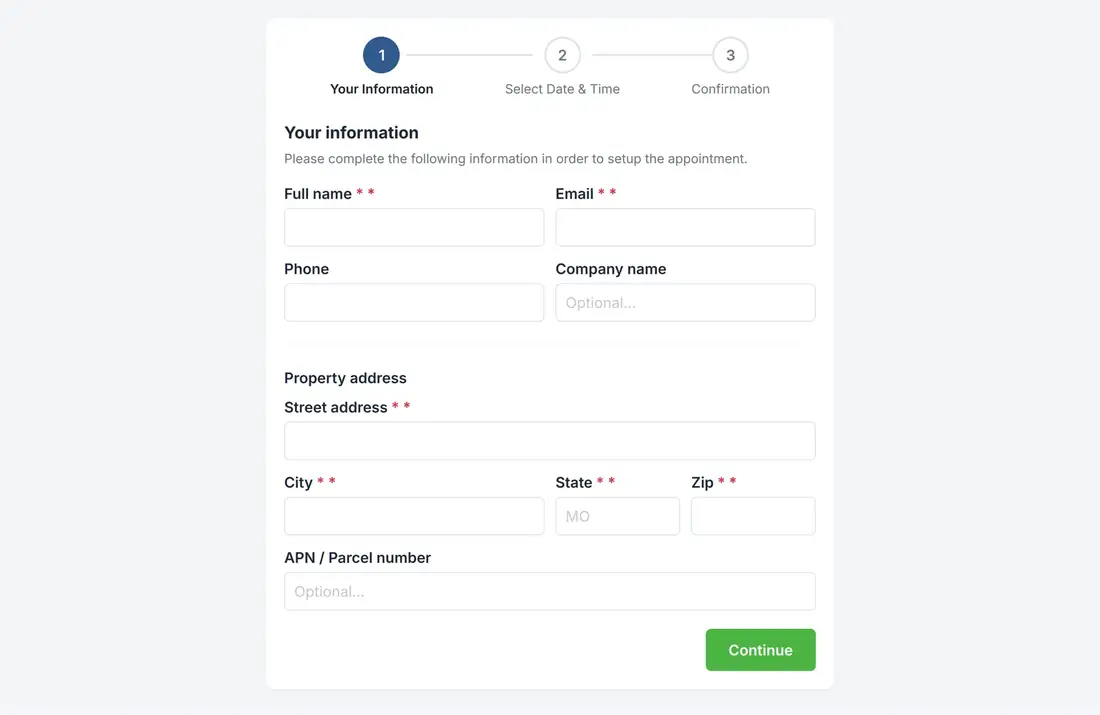
Clients book through a simple three-step page: their information, a date and time, and a confirmation.
Your appointment types
Offer only the kinds of appointment you want, each with its own length, such as a walkthrough or a consultation.
Your hours, your rules
Choose which days and hours people can book. Times that are already taken are not offered.
The details you need
The page asks for name, email, phone, company, and the property address, so you arrive at the appointment prepared.
Confirmation and a way to change plans
Clients get a confirmation, can add the appointment to their own calendar, and can reschedule or cancel from a link.
Invite people yourself
Send a scheduling invitation to a contact, and they pick a time from the same page.
Set the hours once
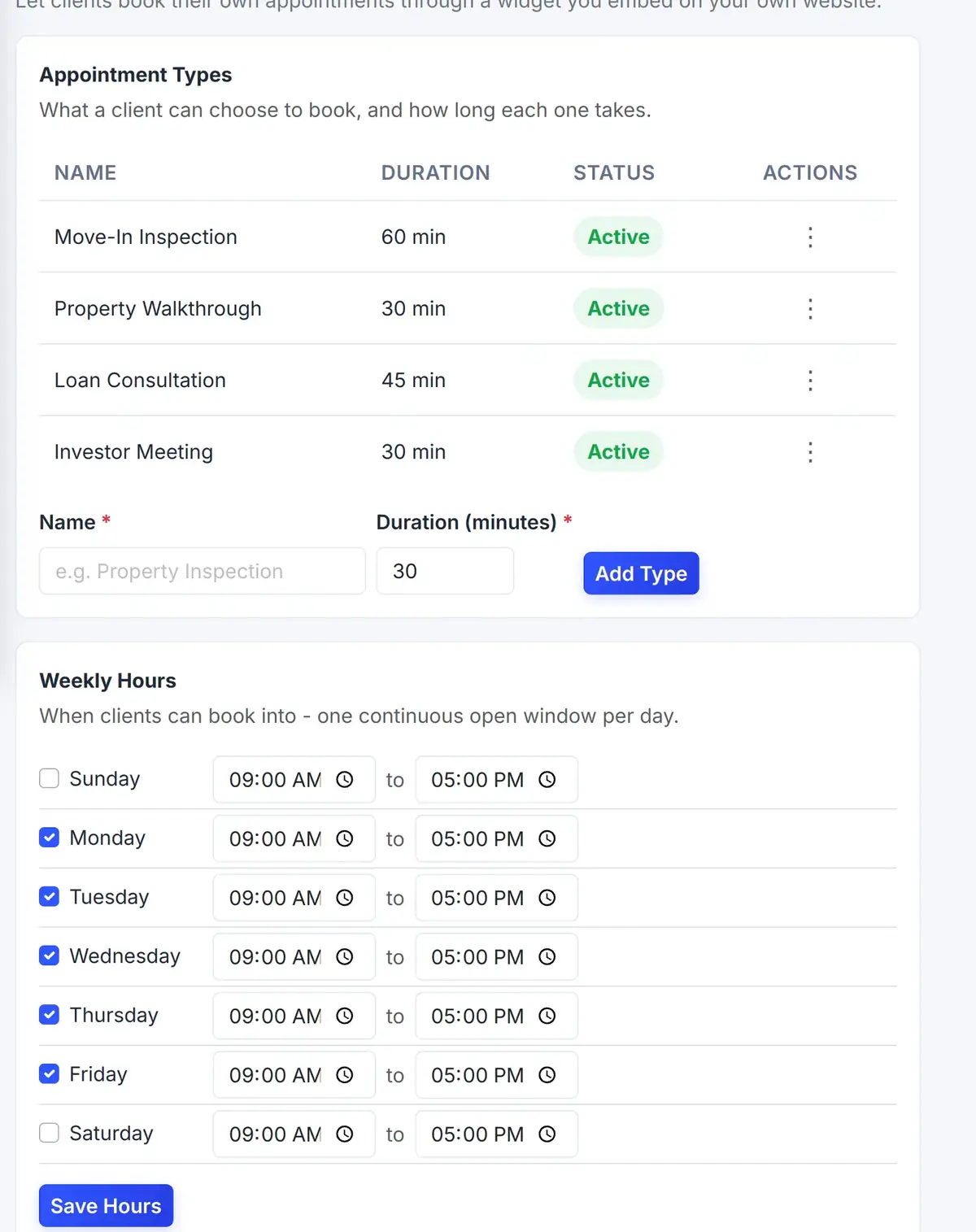
Under Settings, you name your appointment types, set how long each takes, and choose the hours clients can book.
 123
Name each kind of appointment and set its length.
Add a new type in a few seconds.
Choose the days and hours people can book.
From the first step to a finished job.
Set your types and hours
Name your appointment types and choose when you are available.
Put the page on your site
Link to your booking page, or send an invitation to one person.
Clients choose a time
They enter their details, pick an open time and confirm.
It lands on your calendar
The appointment appears in the Scheduler, and the client gets a confirmation.
A booking while you are on a call
A homeowner opens your booking page, picks "Property Walkthrough," and chooses Tuesday at 2 p.m., the first open time.
They enter the property address and their phone number. You see it on your calendar and walk in prepared.
Sample booking. The fields on your own page follow your settings.
Connected to the rest of your operation.
Good to know.
Need a module we don’t have?
GenesisOS is modular, so we can build one just for you.
Run your business from one connected system.
Replace disconnected handoffs with shared records, purpose-built modules, and workflows that move the work forward.