Your whole business, one screen.
Open GenesisOS and start with the Dashboard: a list of what needs you today, then cards for every part of the business you run. Arrange the cards your way, fold away the sections you do not use, and your own setup stays put.
- One screen for the whole business
- Your cards, arranged your way
- Only the modules that are on
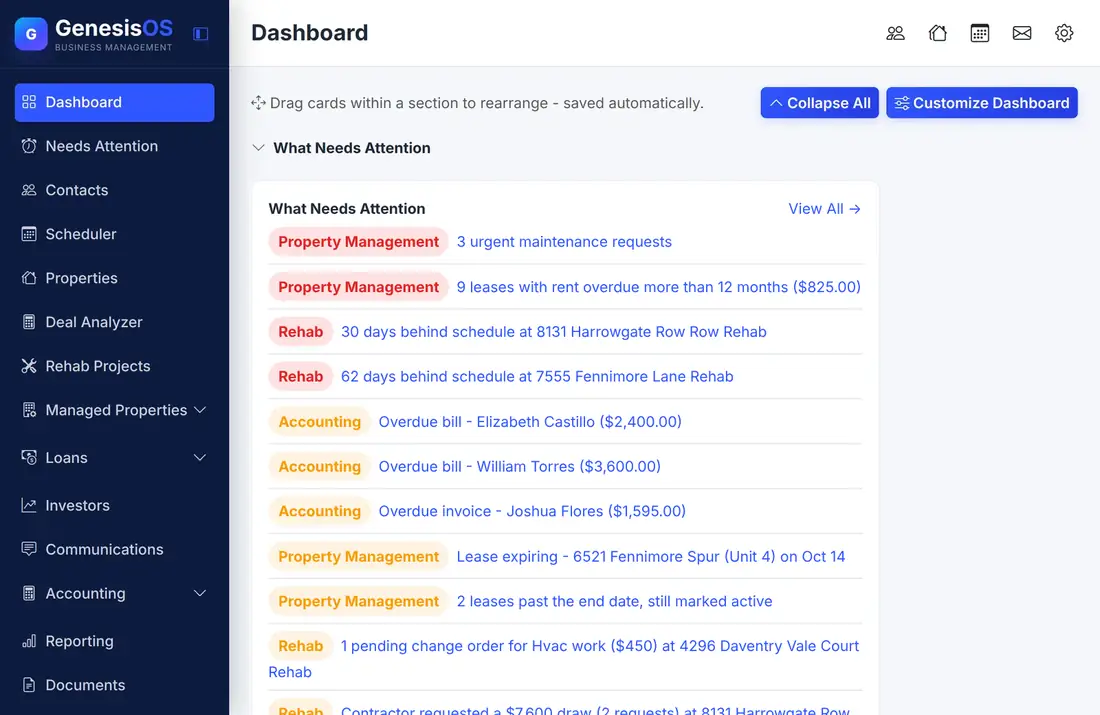
Everything you check every morning.
What needs you, first
The top of the page lists what needs attention today: urgent maintenance, overdue rent, projects behind schedule, overdue bills, late loans, and cold leads, each line tagged with the part of the business it comes from.
Cards for every module
Each module that is switched on adds its own section of cards, such as Loans, Property Management, Deal Analyzer, Rehab Projects, Scheduler, and Accounting. When a module is off, its cards disappear.
Arrange it your way
Drag cards within a section to put them in the order you check them. The new order is saved automatically, with nothing to publish and nothing to turn on.
Show only what you use
Fold a section closed with one click, or open Customize Dashboard to hide the cards and sections you never look at.
Money at a glance
With Accounting on, you get cards for cash and upcoming bills and a cash flow forecast section, so you can check the money without opening the books.
Tasks and activity
Your open tasks and the latest activity across the business sit on the same page, so you can follow up without hunting through menus.
The page you open first
The Dashboard opens with what needs your attention, then your cards. Customize it once and it stays the way you set it.
 1234
Choose which cards and sections to show.
Fold every section closed, then open only the one you need.
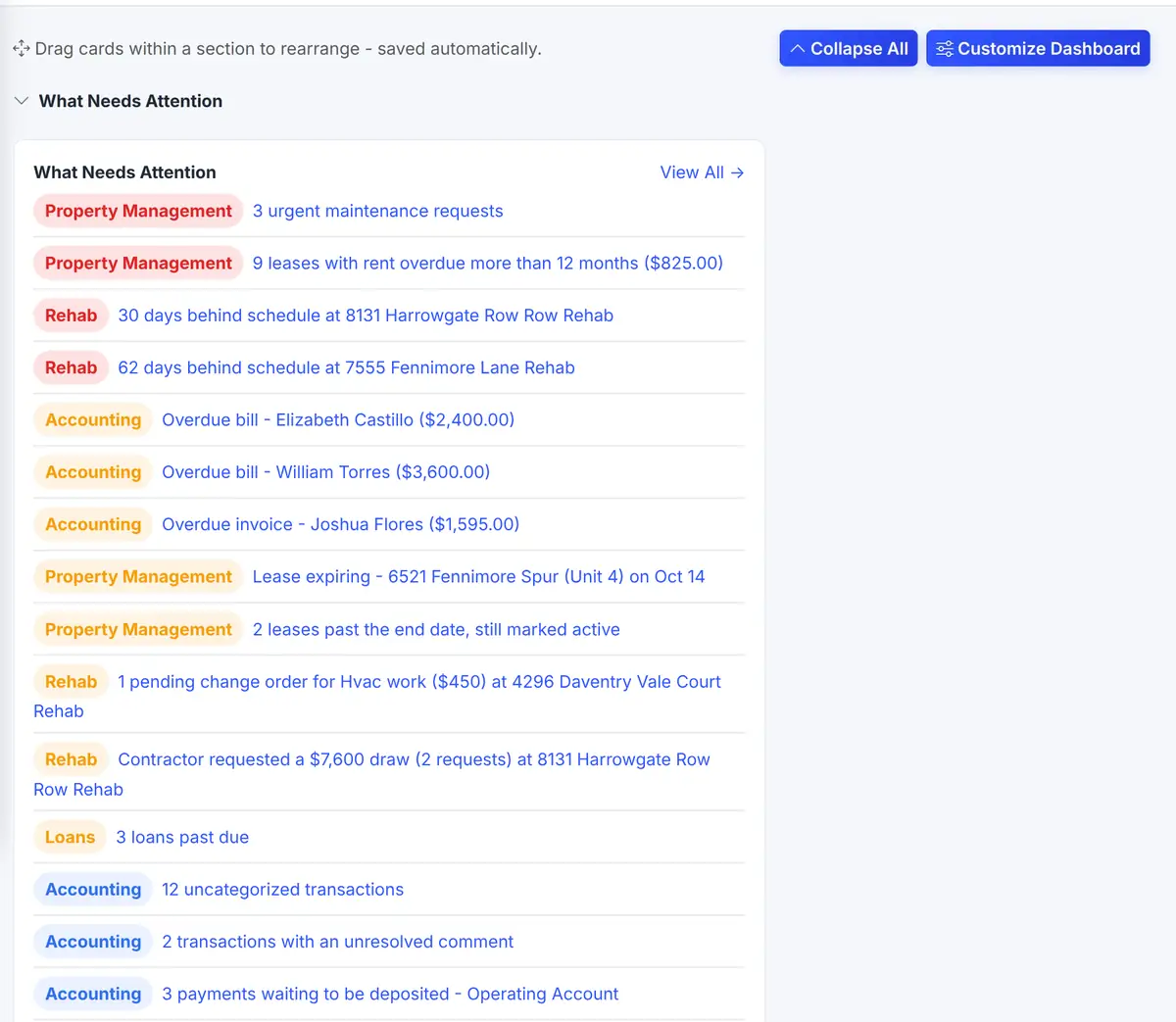
Everything overdue or urgent, in one list at the top.
Each line shows where it comes from, such as Property Management, Rehab, or Accounting.
From a blank page to your own control room.
Your modules show up
Each module that is on adds its own cards to the Dashboard.
Check what needs you
Start with the attention list at the top and click a line to open the record behind it.
Arrange your cards
Drag cards into the order you look at them. It saves as you go.
Hide the noise
Collapse sections or hide cards you never use with Customize Dashboard.
A Monday morning
You open GenesisOS before your first call. The attention list shows urgent maintenance requests, a rehab behind schedule, an overdue bill, a contractor draw to approve, late loans, and leads nobody has called.
You click each one, deal with it, and move on to the cards for the rest of the week.
Sample items. Your list shows only what is true in your own records.
Connected to the rest of your operation.
Good to know.
Need a module we don’t have?
GenesisOS is modular, so we can build one just for you.
Run your business from one connected system.
Replace disconnected handoffs with shared records, purpose-built modules, and workflows that move the work forward.