Bring your contacts in. Take them with you.
Move your contact list in from a spreadsheet in a few steps, with a preview before anything is saved. Export every contact to a CSV file whenever you want a copy. Your data is never trapped.
- CSV in and out
- Preview before anything is saved
- One click to export everything
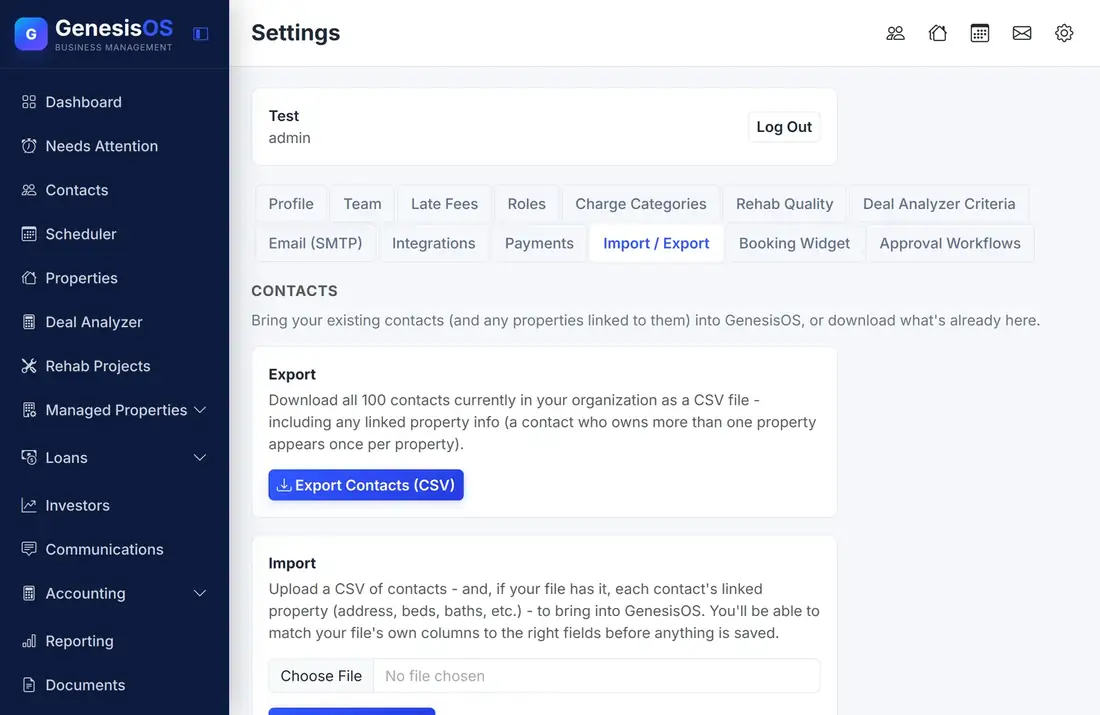
Your data goes in and out freely.
Import from a spreadsheet
Upload a CSV of your contacts and bring them into GenesisOS in one pass, instead of typing them in one at a time.
Match your columns
Tell GenesisOS which column is the name, the email, and the phone. Your spreadsheet does not have to match a fixed template.
Preview first
See what will be created before it is saved, so a wrong column does not fill your account with bad records.
Export every contact
Download all your contacts as a CSV in one click, ready for a spreadsheet, a mailing tool, or a backup.
No lock-in
Because exporting is built in and always available, you can leave with your contact list at any time.
Types and linked records
Contacts keep their types, so a seller or an investor stays a seller or an investor after the move.
Import and export on one page
Both tools sit together under Settings. Export is a single button, and import walks you through each step.
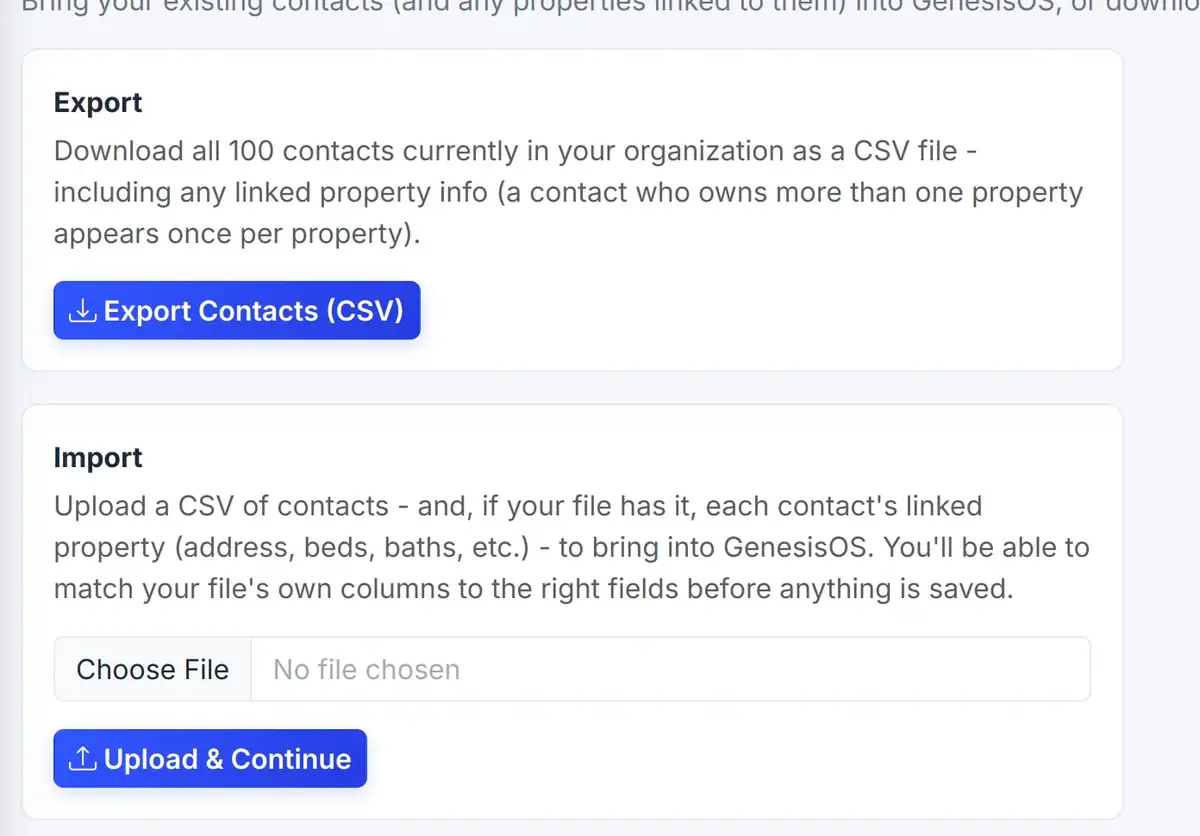 123
Everything you need to take your contacts out.
One click downloads every contact as a spreadsheet file.
Start an import by choosing your file, then match your columns.
From the first step to a finished job.
Export or collect
Start with a CSV from your old system, or export one from GenesisOS.
Upload the file
Choose it on the Import and Export page and continue.
Match the columns
Say which column holds each piece of information.
Preview and finish
Check the preview, then confirm and the contacts are created.
Moving from a spreadsheet
You have 500 contacts in a spreadsheet from years of work. You upload the file and match the name, email, and phone columns.
The preview shows what will be created. You confirm, and the whole list is in GenesisOS in minutes.
Sample steps. The columns you can match depend on your file.
Connected to the rest of your operation.
Good to know.
Need a module we don’t have?
GenesisOS is modular, so we can build one just for you.
Run your business from one connected system.
Replace disconnected handoffs with shared records, purpose-built modules, and workflows that move the work forward.